How to Virtually Stage a Listing With AI in 2026 (Step-by-Step for Agents)
Empty rooms photograph cold, and cold photos get scrolled past. That is why more agents are learning how to virtually stage a listing with AI: instead of renting furniture for thousands of dollars or waiting days on a design service, you can turn a bare or dated room into a warm, buyer-ready photo in a few minutes for a few dollars. This guide walks through the exact step-by-step workflow working agents use in 2026, what to watch out for, the disclosure rules you must follow, and the tool we reach for first.
Table of contents
- Why virtually stage with AI at all
- How to virtually stage a listing with AI, step by step
- The AI tool we use to stage listings
- Disclosure rules and staging best practices
- Frequently asked questions
Why virtually stage with AI at all
Traditional physical staging works, but it is slow and expensive — often $1,500 to $4,000+ for a single home over a few months. Virtual staging gets you 80% of the visual impact for a tiny fraction of the cost, and AI virtual staging takes it further by removing the design-firm turnaround entirely. Staged listings tend to photograph better, earn more clicks online, and help buyers picture themselves living there. For a vacant listing, a clean set of AI-staged hero photos is one of the highest-ROI moves you can make before going live. If you want the full price breakdown, see our guide to how much AI virtual staging costs in 2026.
How to virtually stage a listing with AI, step by step
Here is the repeatable workflow. Once you have done it twice, a full set of rooms takes under 30 minutes.
1. Shoot clean, straight, well-lit source photos. AI staging is only as good as the input. Shoot each empty room from a corner at chest height, keep the camera level, open the blinds, and turn on every light. Wide, bright, uncluttered shots give the AI the most room to work.
2. Declutter and clean up first. If the room has trash, cords, or leftover boxes, remove them — either in real life or with the tool’s object-removal feature. Stage a clean room, not a messy one.
3. Pick a style that matches the buyer. Match the furniture style to the home and the likely buyer: modern farmhouse for suburban family homes, mid-century or contemporary for urban condos, transitional for broad appeal. The goal is aspirational but believable.
4. Upload and generate. Drop the photo into your AI staging tool, choose the room type (living room, bedroom, kitchen) and style, then generate. Most tools return several furnished options in under a minute.
5. Review for realism, then regenerate. Check scale (no couches floating or doorways blocked), shadows, and perspective. If something looks off, regenerate or pick a different variation — this is where the cost-per-photo model pays off.
6. Keep one matching “before” photo. Buyers appreciate seeing the real empty room too. Pair the staged hero shot with an unstaged version so expectations stay honest.
7. Label and publish. Add your “virtually staged” disclosure (more on that below), then upload to the MLS and your marketing. For the broader stack that surrounds this step, see our complete guide to the best AI tools for real estate agents.
The AI tool we use to stage listings
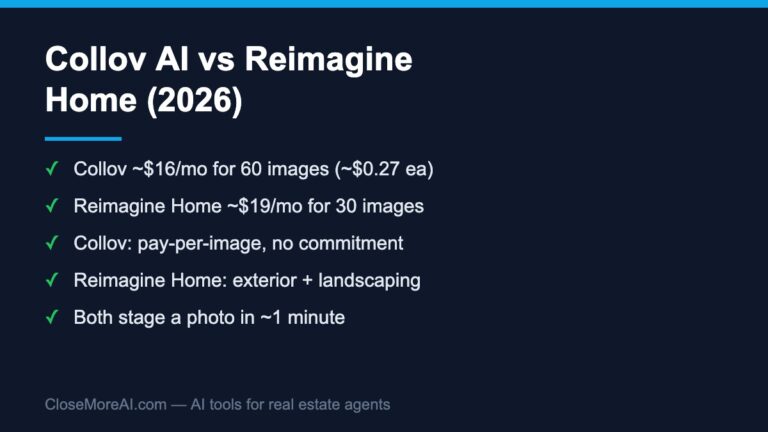
After testing the major options, the tool we reach for first is Collov AI. It is purpose-built for real estate, renders photorealistic furnished rooms in about 10 seconds, and handles the full workflow above — furniture add/remove, decluttering, material and finish swaps, even lighting and season changes — at roughly $0.27 per image. That per-photo pricing is what makes the “regenerate until it is right” step practical.
| What you need | How Collov AI handles it |
|---|---|
| Furnish an empty room | Auto-furnish by room type + style, multiple variations |
| Remove clutter or old furniture | Object removal / declutter in one pass |
| Update finishes (floors, walls) | Material and surface overlays |
| Speed | ~10-second renders, ~$0.27/image |
Try it on your next vacant listing: stage a room with Collov AI →. To go deeper, read our hands-on Collov AI review, compare plans in the Collov AI pricing guide, or see how it stacks up against the field in our best AI virtual staging tools roundup.
Disclosure rules and staging best practices
Virtual staging is allowed, but you must disclose it. Most MLSs and state rules require you to clearly label digitally altered photos so buyers are not misled — the National Association of Realtors Code of Ethics (Article 12) requires a true picture in advertising. Best practices: only stage to show a room’s potential, never to hide defects (water stains, cracks, damage); keep structural reality intact; add a visible “Virtually staged” caption on each edited photo; and include at least one unedited image of the same room. Honest staging builds trust and avoids wasted showings from disappointed buyers.
Frequently asked questions
How long does it take to virtually stage a listing with AI?
Once your source photos are shot, a single room takes about a minute to generate and a few minutes to review. A full vacant home is typically under 30 minutes.
How much does AI virtual staging cost?
Far less than physical staging — often well under a dollar per photo with credit-based tools. See our full AI virtual staging cost guide for current pricing.
Can I virtually stage an occupied or cluttered home?
Yes. Use the tool’s object-removal feature to clear clutter or dated furniture first, then stage the cleaned room. Always disclose the edits.
Want our free 2026 AI Toolkit for Agents — 25 tools that win listings and close deals? Grab the free toolkit here.
Related guides
- Collov AI vs Virtual Staging AI — a head-to-head on the two tools most agents shortlist.